Locked vs editable checklist items
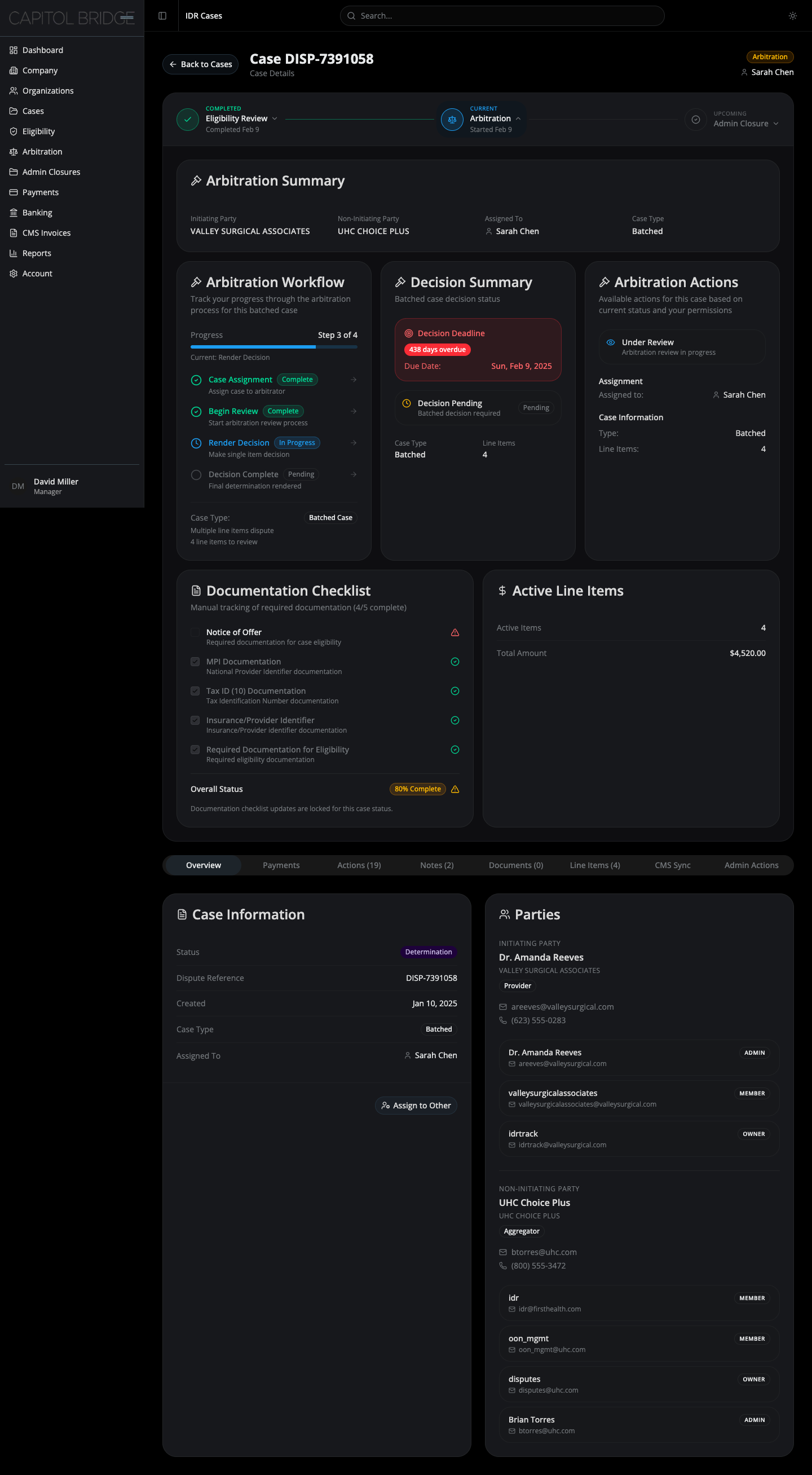
As a case manager, I want to tell at a glance that a checklist item is locked vs editable so that I don’t waste time trying to interact with a non-actionable control.
What this enables
Section titled “What this enables”In the Arbitration panel footer, the Documentation Checklist renders with a deliberately muted treatment: gray fill, 60% opacity, and label color shifted to muted-foreground when an item is uploaded. A footer message reinforces it: “Documentation checklist updates are locked for this case status.” The same checklist in the Eligibility panel uses the primary color fill, signaling that those items are still in-flight.
See it in the prototype
Section titled “See it in the prototype”- Locked (Arbitration): case-2 → click Arbitration → scroll to the footer
- Editable (Eligibility): case-1 → click Eligibility Review → see the Documentation Checklist column
Why it works this way
Section titled “Why it works this way”Client feedback flagged that fully-saturated primary-blue checkboxes looked interactive even when they weren’t — managers were trying to click controls that did nothing. The muted treatment makes the locked state visually obvious without removing the checklist entirely (the snapshot is still useful as reference on a closed-arbitration case).
Related documentation
Section titled “Related documentation”- Arbitration Panel — the footer layout that hosts the locked checklist
- Arbitration details in context — the broader story this treatment supports