Eligibility Panel
See it live: case-1 → click Eligibility Review
When it applies
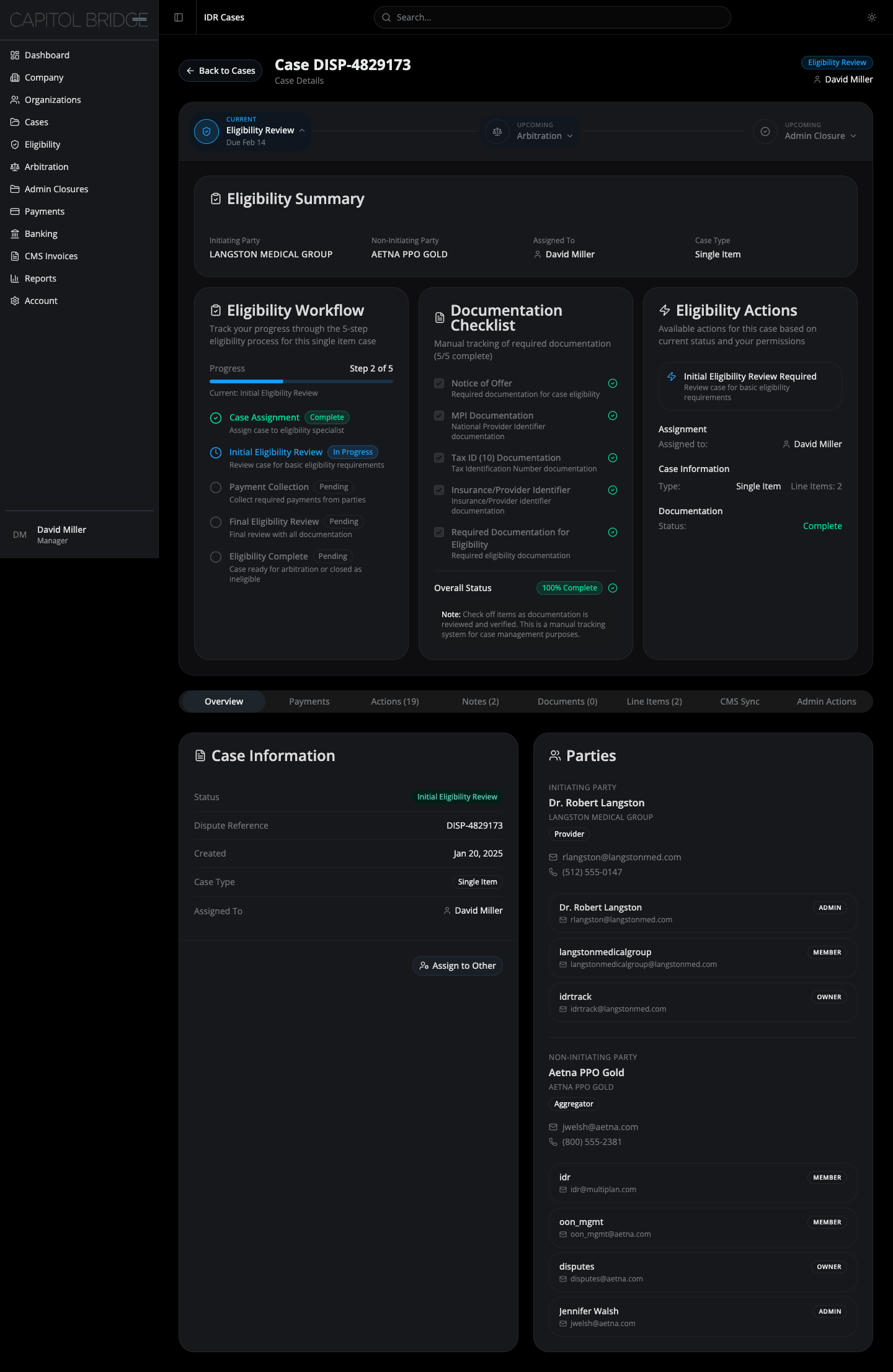
Section titled “When it applies”A case shows the Eligibility Review node as Current while it is in Initial Eligibility Review, Final Eligibility Review, or Pending RFI. The panel surfaces the workflow, required documents, and the current stage context without the manager having to open a separate Eligibility dashboard.
Layout
Section titled “Layout”The panel renders inside the same card as the stepper. Top to bottom:
- Eligibility Summary — full-width card with parties, assignment, case type
- Missing Documentation banner — red-tinted, conditional on missing docs
- Three-column body:
- Eligibility Workflow
- Documentation Checklist
- Eligibility Actions
Eligibility Summary
Section titled “Eligibility Summary”Four cells laid out horizontally: Initiating Party (organization in uppercase tracking), Non-Initiating Party (plan or aggregator in uppercase tracking), Assigned To (person icon + name), Case Type (Single Item or Batched).
Missing Documentation banner
Section titled “Missing Documentation banner”Renders only when one or more required documents are missing. Red-tinted banner with a triangle-alert icon, the label “Missing Documentation”, and a comma-separated list of missing document names.
When all required documents are uploaded, the banner is hidden entirely.
Eligibility Workflow
Section titled “Eligibility Workflow”Five-step vertical checklist:
- Case Assignment
- Initial Review
- Payment Collection
- Final Review
- Eligibility Complete
Each step shows an icon reflecting its state (complete / in-progress / pending), the step label, and a short description. A progress bar and “Step X of 5” counter sit above the list. The card footer restates case type and line-item count.
Documentation Checklist
Section titled “Documentation Checklist”A read-out of required documents for this case:
- Checkbox indicator — filled when complete, empty when missing
- Document name and one-line description
- Right-side icon — emerald check for uploaded, red alert for missing
- Divider, then overall completion percentage as a badge
Checkboxes are not interactive. They reflect state assigned upstream. In the Eligibility panel they use the primary color fill. In the Arbitration panel (where documentation is locked) they use a muted gray fill with reduced opacity — see Arbitration Panel.
Eligibility Actions
Section titled “Eligibility Actions”A current-step callout at the top summarizes what the manager should do next. Below that, a block of workflow facts: assignment, case type, line items, and documentation status.
No action buttons. The “Available Actions” button list that originally lived in this column was removed during the redesign. Actions happen upstream in the AI Review Queue and the two-step flow; the panel is reference-and-status only.